
Kullanıcı menüsü, kişisel hesap ayarlarına, kaydedilmiş filtrelere, karmaşık koşullara, para birimlerine ve şifre yönetimine erişim sağlar. Web sitesinin sağ üst köşesindeki kullanıcı simgesinden açılabiliyor.
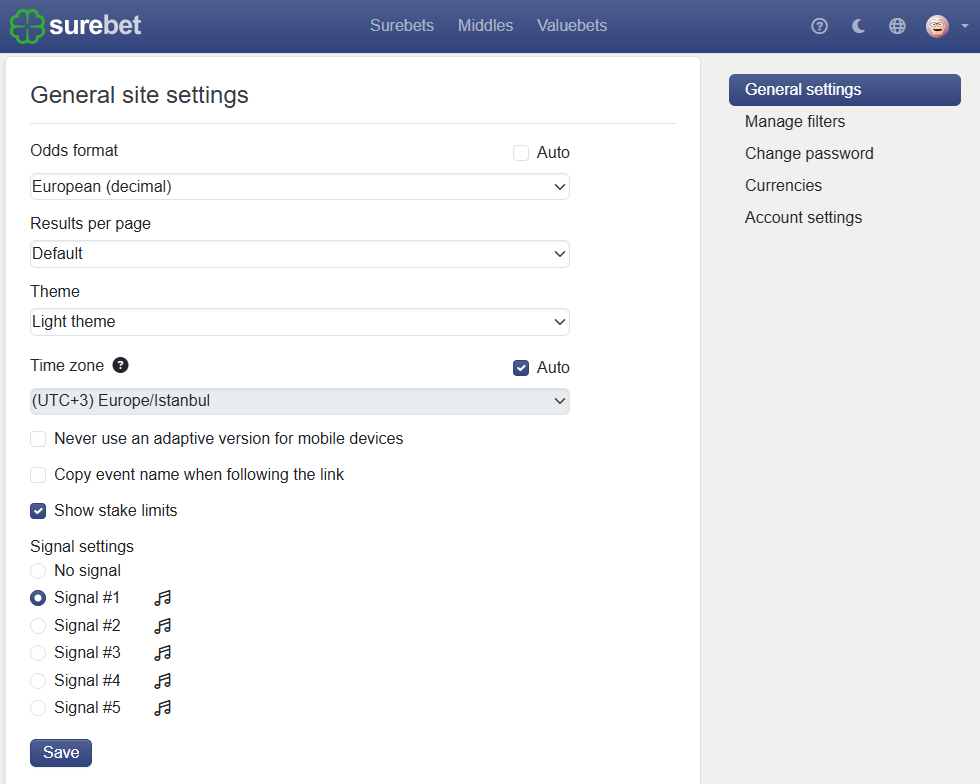
Genel ayarlar bölümü, hesabınız için ana görüntüleme ve arayüz tercihlerini içerir. Buradan şunları yapılandırabilirsiniz:
İkramiye oranı biçimi
İkramiyelerin web sitesindeki nasıl görüntüleneceğini seçin. Avrupa (ondalık), Amerikalı, İngiliz (kesirli), Hong Kong ve Malay formatları arasında seçim yapabilirsiniz. Eğer Otomatik seçeneği etkinleştirilmişse, sistem kullanıcının ülkesine özgü formatı uygular.
Sayfa başına sonuçlar
Her sayfada kaç sonuç gösterileceğini seçin. Bu seçeneği Varsayılan (25 kayıt) olarak bırakabilir veya başka bir mevcut değeri seçebilirsiniz (50 veya 75).
Tema
Web sitesi temasını seçin: açık veya karanlık. Varsayılan olarak, açık tema kullanılır. Otomatik tema tespiti durumunda, ayarlarınız sistem ayarlarınıza göre belirlenir.
Zaman dilimi
Etkinlik başlangıç süreleri için kullanılan zaman dilimini ayarlayın. Eğer Otomatik etkinse, web sitesi zaman dilimini sistem veya tarayıcı ayarlarınızdan alır.
Mobil versiyon ayarı
"Mobil cihazlar için asla uyumlu bir versiyon kullanma" seçeneği, mobil uyumlu arayüzü devre dışı bırakır ve her zaman web sitesinin standart masaüstü versiyonunu gösterir.
Bağlantıyı takip ederken etkinlik adını kopyala
Bu seçenek etkinleştirildiğinde, etkinlik adı kopyalanır when you open a bookmaker link from the website. Bu, etkinlik adını bahisçinin arama alanına hızlıca yapıştırmak için yararlı olabilir.
Bahis tutarı limitlerini göster
Bu seçenek, o bilgiler mevcut olduğunda bahis tutarı limitlerini göstermeye olanak tanır.
Uyarı ayarları
Sesli sinyal kullanıp kullanmamayı ya da mevcut bildirim seslerinden birini seçmeyi kendiniz belirleyebilirsiniz. Müzik nota simgesi her bir sinyali önizlemenize olanak tanır.
Değişiklik yaptıktan sonra, Kaydet'e tıklayın.
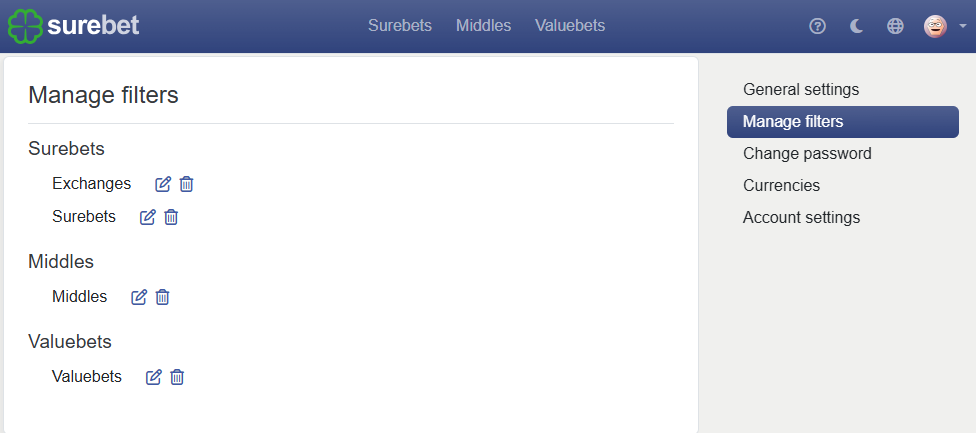
Filtreleri yönet bölümü, kaydedilmiş filtrelerinizi Surebets, Middles ve Valuebets için gösterir.
Her kaydedilmiş filtre, adının yanındaki simgeleri kullanarak düzenlenebilir veya silinebilir. Düzenleme simgesi, filtreyi değişiklikler için açar, silme simgesi ise kaydedilmiş filtrelerinizden kaldırır.
Bu bölüm, farklı stratejiler, sporlar, bölgeler, bahis şirketleri veya piyasa türleri için birden çok filtre ön ayarına sahip olduğunuzda yararlı olur.
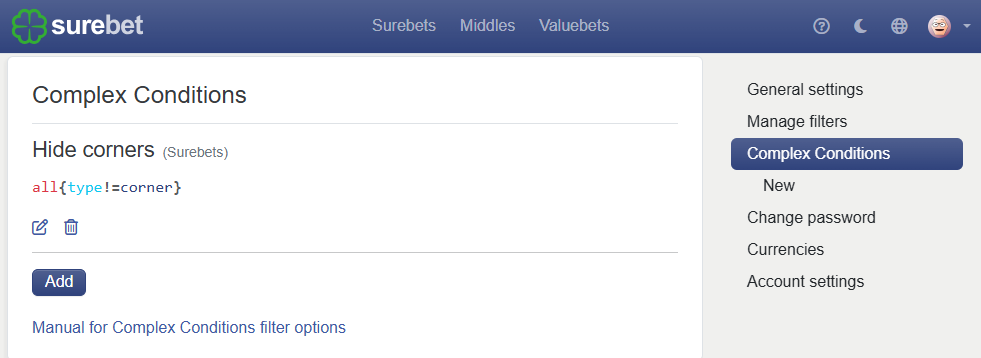
Kompleks Koşullar bölümü, özel filtreleme ifadelerini yönetmenizi sağlar. Belirli bahis şirketleri için seçilen piyasaları çıkarmak, borsa bahis limitlerine göre filtrelemek vb. için kullanılabilirler.
Her koşul şunları içerir:
Ad
Filtre panelinde görüntülenen koşulun görünür adı.
Kapsam
Koşulun mevcut olduğu alan, örneğin Kesin Bahisler veya tüm bölümler.
İfade
Kompleks Koşullar sözdizimini kullanarak yazılmış filtreleme kuralı.
Her koşulun altında yer alan simgeleri kullanarak mevcut koşulları düzenleyebilir veya silebilirsiniz. Sağ taraftaki yeni seçenek, yeni bir koşul oluşturmanızı sağlar.
Oluşturulduktan sonra, bir Kompleks Koşul ilgili filtre panelinde doğrudan kullanılabilir hale gelir ve diğer filtre seçenekleri gibi etkinleştirilip devre dışı bırakılabilir.
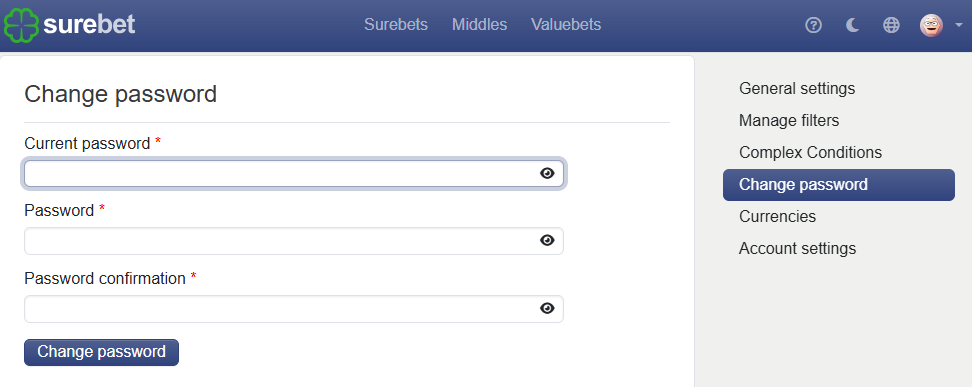
Şifre değiştir bölümünün, hesap şifrenizi güncellemenize olanak tanır. Şifrenizi değiştirmek için geçerli şifrenizi girin, ardından yeni şifreyi girin ve onaylayın. Güncellemeyi uygulamak için "Şifre Değiştir" butonuna tıklayın.
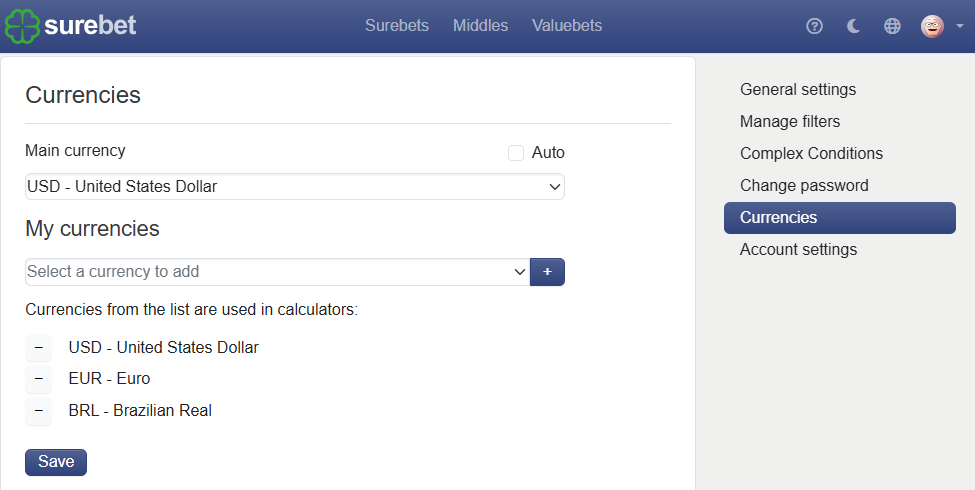
Para Birimleri bölümü, web sitesindeki hesap makineleri ve finansal değerlerde kullanılan para birimlerini kontrol eder.
Ana para birimi
Hesabınız için birincil para birimini seçin. Otomatik etkinleştirildiğinde, para birimi, Bölgesel Ayarlarda seçilen ülkeye göre seçilir.
Benim para birimlerim
Bu liste hesap makinelerinde mevcut olan para birimlerini içerir. Bir para birimini, açılır listeden seçip artı butonuna tıklayarak ekleyebilirsiniz.
Bir para birimini listeden kaldırmak için yanındaki eksi butonuna tıklayın.
Değişiklik yaptıktan sonra, Kaydet'e tıklayın.
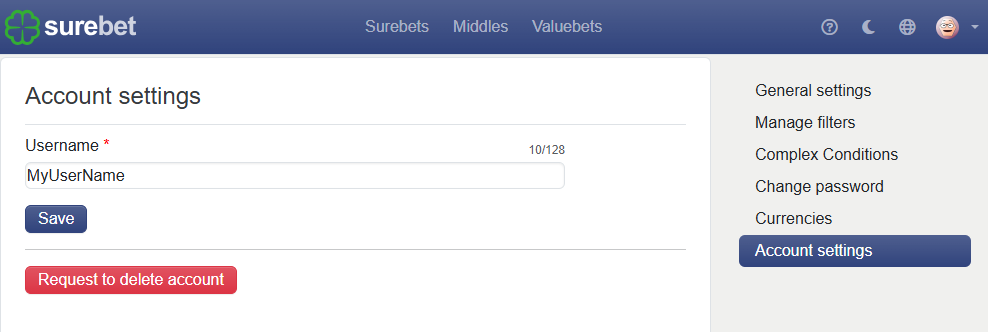
Hesap ayarları bölümü, temel hesap bilgilerini içerir.
Buradan kullanıcı adınızı değiştirebilirsiniz. Yeni kullanıcı adını alana girin ve Kaydet'e tıklayın.
Bu bölüm ayrıca bir Hesabı silme talebi butonunu içerir; bu buton, bir hesap silme talebi göndermek için kullanılabilir.
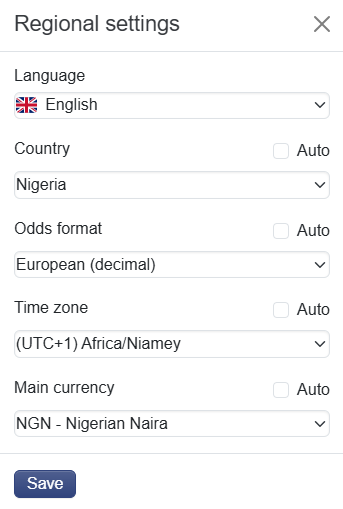
Bölgesel ayarlar, konumunuz ve arayüzle ilgili ana web sitesi tercihlerini hızlıca yapılandırmanıza olanak tanır. Bu pencereyi açmak için web sitesinin sağ üst köşesindeki globe simgesine tıklayarak açabilirsiniz.
Bu bölüm, web sitesi dilini, ülkeyi, ikramiye oranını, saat dilimini ve ana para birimini bir yerde ayarlamak istediğinizde faydalıdır; böylece farklı hesap ayarlarında bu seçenekleri aramanıza gerek kalmaz.
Dil seçeneği, web sitesi arayüz dilini değiştirir.
Açılır listeden tercih edilen dili seçin ve Kaydet'e tıklayın. Seçilen dilde web sitesi arayüzü görüntülenecektir. (Varsayılan arayüz dili, web sitesini açmak için kullanılan alan adından belirlenir.)
Ülke ayarı web sitesinin kişiselleştirilmesi için kullanılır. Bu, bölgesel arayüz öğelerini, bahis şirketleri listelerini, sıralamaları ve web sitesinde gösterilen diğer ülkeye özgü bilgileri etkileyebilir.
Otomatik etkinleştirildiyse, ülke otomatik olarak, genellikle mevcut bağlantınıza göre seçilir. Bu modda, ülke alanı gösterilir ancak manuel olarak değiştirilemez.
Otomatik devre dışı bırakıldıysa, ülkeyi açılır listeden kendiniz seçebilirsiniz. Seçilen ülke, ayarlarınızda kaydedilir ve IP adresiniz değiştiğinde otomatik olarak değişmez.
İkramiye oranı seçeneği, web sitesinde oranların nasıl gösterileceğini kontrol eder.
Gerekli formatı manuel olarak seçebilir veya otomatiği etkinleştirebilirsiniz. Otomatik etkinleştirildiğinde, ikramiye oranı seçilen ülkeye göre seçilir. Örneğin, bazı ülkeler genellikle ondalık ikramiye oranları kullanırken, diğerleri kesirli veya Amerikan ikramiye oranları kullanır.
Eğer hem Ülke hem de İkramiye oranı otomatik olarak ayarlandıysa, web sitesi önce ülkenizi tespit eder ve ardından bu ülke için en uygun ikramiye oranı formatını uygular.
Saat dilimi ayarı, etkinlik başlangıç zamanlarının nasıl gösterileceğini kontrol eder.
Otomatik etkinse, saat dilimi sisteminizden veya tarayıcı ayarlarınızdan otomatik olarak algılanır. Algılanan değer, alanda gösterilir ancak manuel olarak değiştirilemez.
Otomatik devre dışı bırakıldığında, gerekli saat dilimini kendiniz seçebilirsiniz. Bu, etkinlik zamanlarının başka bir bölgeye göre gösterilmesini istiyorsanız faydalıdır.
Ana para birimi ayarı, web sitesinde kullanılan varsayılan para birimini tanımlar; bu, hesap makineleri ve bahis şirketleri ile ilgili değerler için geçerlidir.
Otomatik etkinse, para birimi seçilen ülkeye göre seçilir. Başka bir para birimi kullanmayı tercih ediyorsanız otomatiği devre dışı bırakın ve açılır listeden manuel olarak seçin.
Burada ana para birimini ayarlamak, her yeni bahis şirketi için para birimini ayrı ayrı değiştirmek zorunda kalmadan zaman kazandırabilir.
Değişiklikleri Kaydetme
Gerekli seçenekleri değiştirdikten sonra Kaydet'e tıklayın. Bölgesel ayarlarınız gelecekteki ziyaretler için saklanacaktır.
Kayıtlı kullanıcılar için bu ayarlar hesapta saklanır. Giriş yapmayan ziyaretçiler için, bunlar tarayıcıda saklanır ve aynı cihazdan sonraki ziyaretlerde tekrar uygulanabilir.